Doodaro storyboard guide: redraw, revoice and reorder one scene (2026)
How to fix a single scene on the Doodaro storyboard: redraw the picture, regenerate the narration, change the voice, reorder, and read the status badges.
Last checked
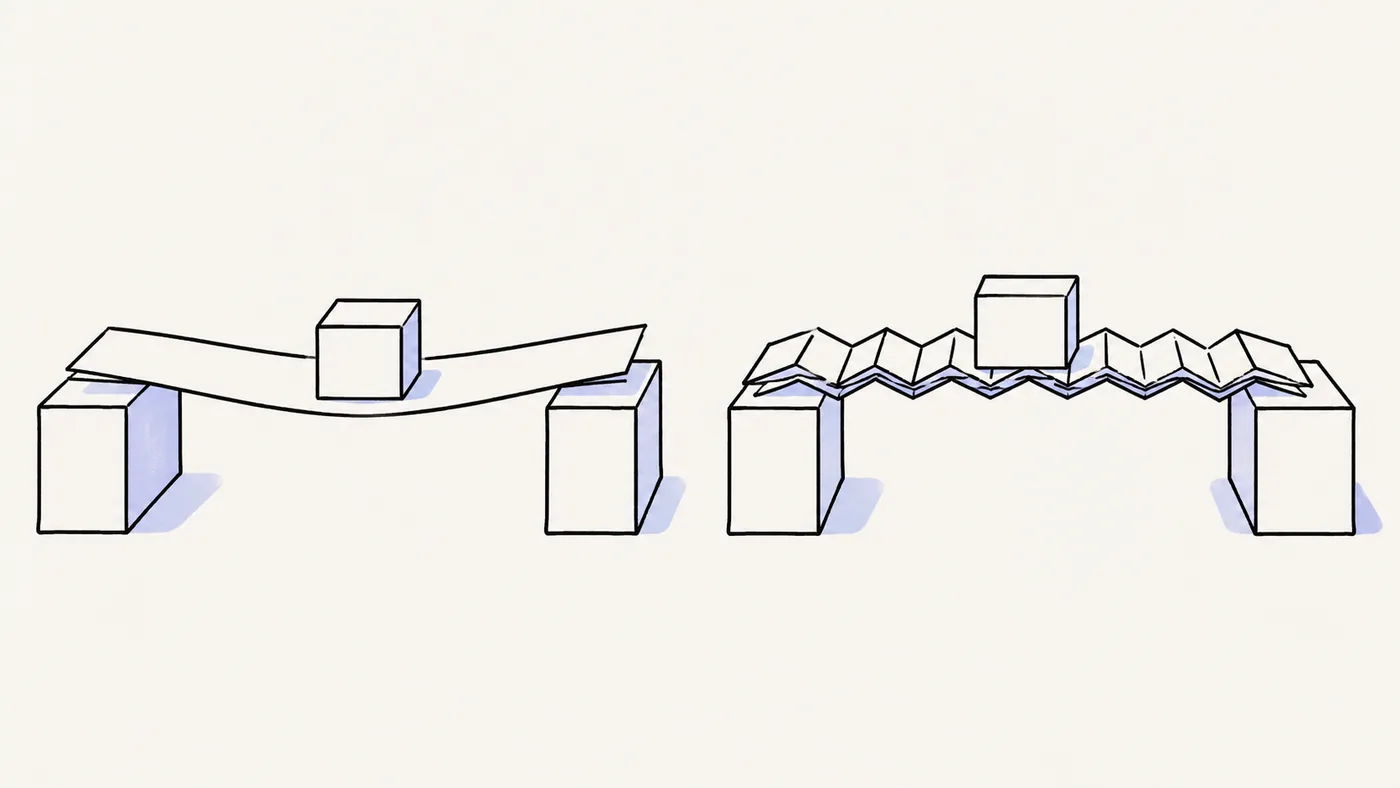
The Storyboard is one card per scene. It exists so you can fix one scene without touching the rest. This guide covers the fixes you will make most: a picture that missed the point, a line that was read wrong, a voice that does not fit one scene, and scenes in the wrong order.
If you have not used the Storyboard yet, the complete tutorial explains the layout. This page assumes you have built scenes and generated at least some pictures.
Read the badges first
Every card shows two badges, Image and Voice, each with a state:
| State | What it means | What to do |
|---|---|---|
| Not created | Nothing generated yet | Click Draw or Voice, or use Generate N images / voices at the top |
| Waiting | In the queue | Nothing; keep working on other scenes |
| Creating | Being made now | Nothing |
| Ready | Done and matches the current text | Nothing |
| Needs update | Text, description or voice changed after the asset was made | Redraw or Revoice |
| Try again | The request failed | Click Redraw or Revoice once more |
| Your recording | You uploaded your own audio for this scene | Nothing, unless the text changed |
The progress card at the top adds them up: Images 7 / 9 means two scenes still need a picture. A video with every card on Ready is ready to render. A scene on Needs update still renders with its old asset, so check for that badge before you export.
Fix 1: redraw a picture
A picture misses when the description was vague, overloaded, or described something the style cannot draw well.
- Click Edit on the card. The pop-up opens with the large picture on the left.
- Open What we’ll draw on the right.
- Rewrite the description. Subject first, one action, one or two props. Cut anything that is not the scene’s single idea.
- Click Regenerate.
- The badge shows Creating, then Ready. Compare the new picture. If it is still off, edit again; every attempt starts from the description, not from the previous picture.
If the description is already right and the picture is simply a bad roll, skip the pop-up and click Redraw on the card. You get a new picture from the same description.
Before: “Something showing teamwork and communication in a modern office.”
After: “Three people around a small table, one pointing at a single sheet of paper, the other two leaning in. A whiteboard behind them with one arrow on it.”
Fix 2: regenerate the narration
Narration goes wrong when a word is mispronounced, the sentence is too long for one scene, or you changed your mind about the wording.
- Click Edit on the card and open Narration.
- Change the text. For pronunciation, spell it how it sounds (“Nguyen” as “Win”) or split a long sentence in two.
- Click Regenerate under the narration.
- Wait for Ready, then click Listen on the card.
The scene’s length grows to fit the new recording, so a longer sentence gives the scene more time automatically. Camera plans and drawing timing are not shortened.
Only this scene is re-recorded. Every other recording stays as it was.
Fix 3: change the voice for one scene
Sometimes one scene needs a different narrator: a quoted line, a second character, or a question-and-answer.
- Click Edit on the card.
- Open Scene voice. It says Use video voice by default.
- Click it, browse the library, play a sample, click Use voice.
- Click Regenerate under Narration so the recording uses the new voice.
The card now shows the scene’s own voice name. To go back, open Scene voice and choose Use video voice.
To change the narrator for the whole video instead, use the Narrator card at the top of the Storyboard. Scenes with their own override keep it.
Fix 4: use your own recording for a scene
Open the Editor, select the scene, and click Upload narration in the left panel. The card’s Voice badge changes to Your recording. Your file replaces the generated voice for that scene only. If you later edit the narration text, the scene shows Needs update because the recording no longer matches the words; upload a new file or switch back to a generated voice.
Fix 5: reorder, add and delete
The toolbar above the grid handles structure:
- Select a card, then click the move earlier or move later arrow. The scene number updates.
- Add scene puts a blank scene after the selected one. Fill in its narration and description in the pop-up, then Draw and Voice it.
- The delete button removes the selected scene. A project keeps at least one scene.
- Undo reverses the last edit, including moves and deletes.
Reordering does not touch pictures or recordings. They travel with the scene.
The Edit pop-up, panel by panel
| Panel | Contains | Regenerates |
|---|---|---|
| Picture | The large image, its status, Regenerate and Edit in editor | The picture |
| Narration | Text, word count, recorded seconds, Regenerate | The recording |
| Scene voice | Use video voice or a per-scene narrator | Nothing until you regenerate narration |
| What we’ll draw | The picture description, Regenerate | The picture |
| Timing & animation | Drawing reveal, ending hold, scene length, link to the Editor | Nothing here; timing is set in the Editor |
Previous scene and Next scene move through the video without closing the pop-up, which is the quickest way to proofread all narration in one pass.
Focus view
The Grid / Focus switch above the scenes changes the layout. Focus shows the same panels as the pop-up on the page itself, with scene tiles across the bottom. Each tile carries two status dots, so a video with a problem scene shows it at a glance. Use Grid to see the whole story at once, Focus to work through it.
Play storyboard
Play storyboard at the top opens a preview: each still picture shows for its scene length while its recording plays. Previous, Play and Next step through. Scenes without a recording play silently.
This is not the animated video; the drawing happens in the Editor. It is the cheapest way to hear whether the story flows, catch a scene that runs long, and spot a picture that does not match its line. Do this pass before you spend render minutes.
Working on a long video
A 10-minute video can have 60 or more scenes. Three habits keep it manageable:
- Generate in one go, review in Focus view. Click Generate N images and Generate N voices, then switch to Focus and step through with Next scene. The bottom strip’s status dots show what is still Waiting or Creating, and you can keep editing descriptions while the queue works.
- Cancel what you no longer need. The generation progress list under the setup row shows queued requests with a Cancel button. If you rewrite a description while its picture is still Waiting, cancel the old request and Draw again.
- Rebuild only when the script changed. If you edit the script on the Story screen, the Storyboard shows a notice that the script has changes not yet in the scenes. Building again keeps pictures and recordings for scenes whose text did not change, so a one-paragraph edit does not throw away sixty pictures.
A checklist before you leave the Storyboard
- Every card shows Image · Ready and Voice · Ready (or Your recording).
- No card shows Needs update.
- You have listened to every scene once with Play storyboard or Listen.
- The scene order tells the story in the right sequence.
- The style card shows the style you actually want; switching later redraws everything.
Then click Open editor to set timing and render.
Why this matters
In tools that generate the whole video from a prompt, a wrong picture in scene 4 means regenerating scenes 1 to 12 and paying for all of it again. On the Doodaro storyboard, scene 4 is one card. Fix it, export once, done.
Frequently asked questions
How do I redraw one scene in Doodaro?
On the Storyboard, click Redraw on the scene card, or open the scene with Edit, change the picture description and click Regenerate. Only that scene gets a new picture. The other scenes and all narration stay as they are.
Can I change the narration for one scene without regenerating the video?
Yes. Open the scene, edit the narration text and click Regenerate under it. The scene gets a new recording and its badge goes back to Ready. You then export again; nothing else is rebuilt.
What does Needs update mean on a scene card?
The text, description or voice changed after the picture or recording was made. The old asset is still there, so the video still renders. Click Redraw or Revoice to bring the scene up to date.
Can I use a different voice for one scene?
Yes. Open the scene, find Scene voice, and pick a narrator. That scene uses the new voice and every other scene keeps the video voice. Regenerate the recording after changing the voice.
How do I reorder scenes?
Select a card and use the move earlier and move later arrows in the toolbar. Undo reverses the move. Scene numbers update automatically.
Does redrawing a scene cost minutes?
No. Minutes are counted on rendered exports only. Redrawing, revoicing and previewing on the Storyboard are free within your plan. Exporting the fixed video counts its full length.